
Run an exam yourself on any classroom panel: pick a preset, tap Start, and the timer handles perusal time, working time, warnings and the chime. No IT booking is needed.
Quick start
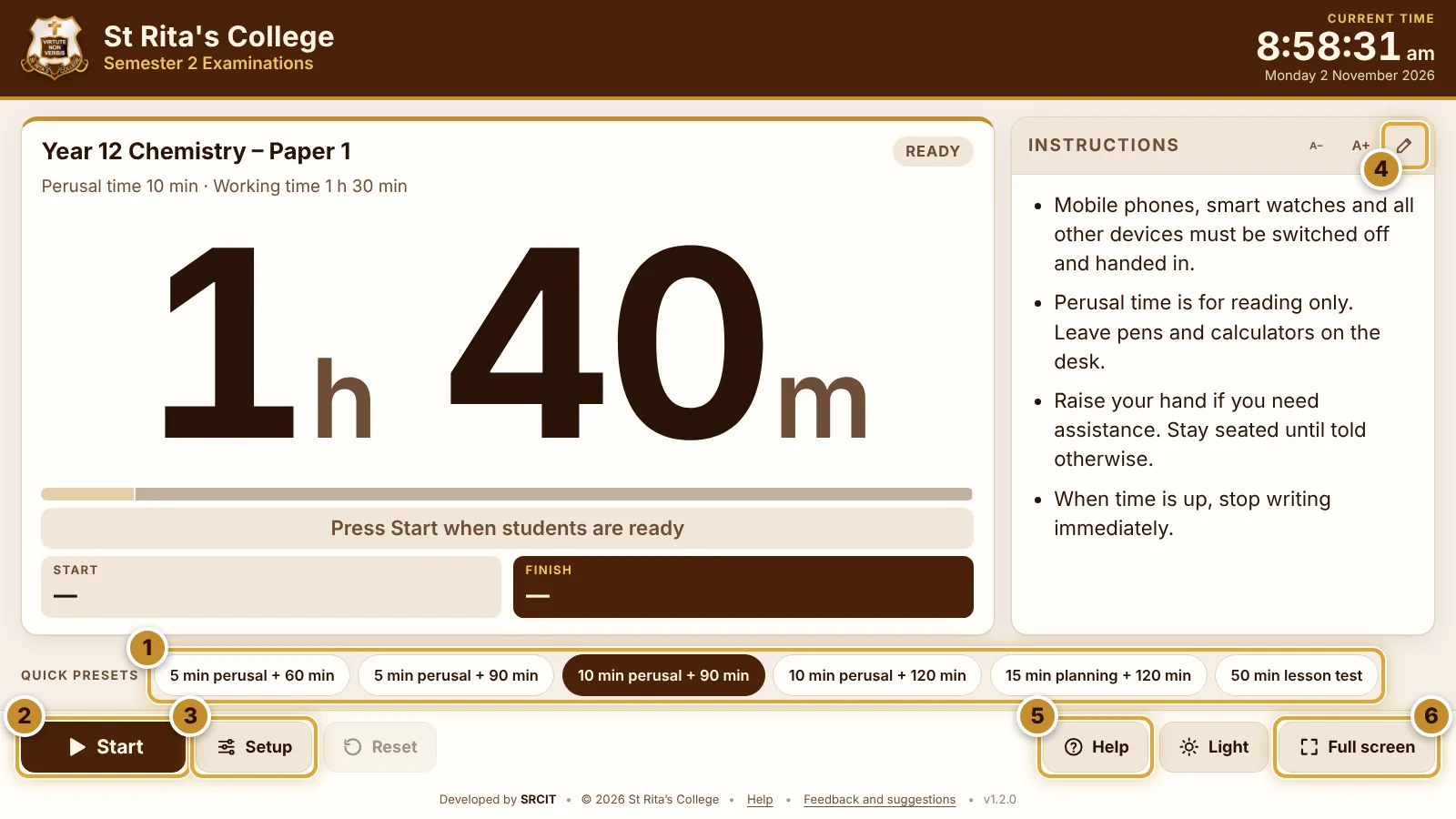
- 1Pick a preset from Quick presets, e.g. 10 min perusal + 90 min. The big number shows the total time.
- 2Tap Start when students are ready. Perusal time counts down first, then working time follows automatically.
- 3Setup lets you add an exam title, change times or add AARA timers. See Setting up an exam.
- 4The pencil edits the instructions shown to students.
- 5Help opens this page in its own tab. The timer keeps running.
- 6Full screen hides the browser bars. Tap it again to exit.
When the exam is over, tap Reset to clear it. Your setup is kept for next time.
Opening the timer
Open examtimer.stritas.qld.edu.au in Chrome on the classroom panel. To make it one tap next time, add it to the panel's home screen:
- In Chrome, tap ⋮ (top right), then Add to Home screen (or Install app).
- Tap Add. A St Rita's crest icon appears on the home screen and opens the timer full screen.
It also works in any browser on a laptop or desktop. Settings are saved on the device you use, so each panel remembers its last setup.
Setting up an exam
Tap Setup to change the exam. Each exam is made of sections that run one after another. The default is Perusal time then Working time.
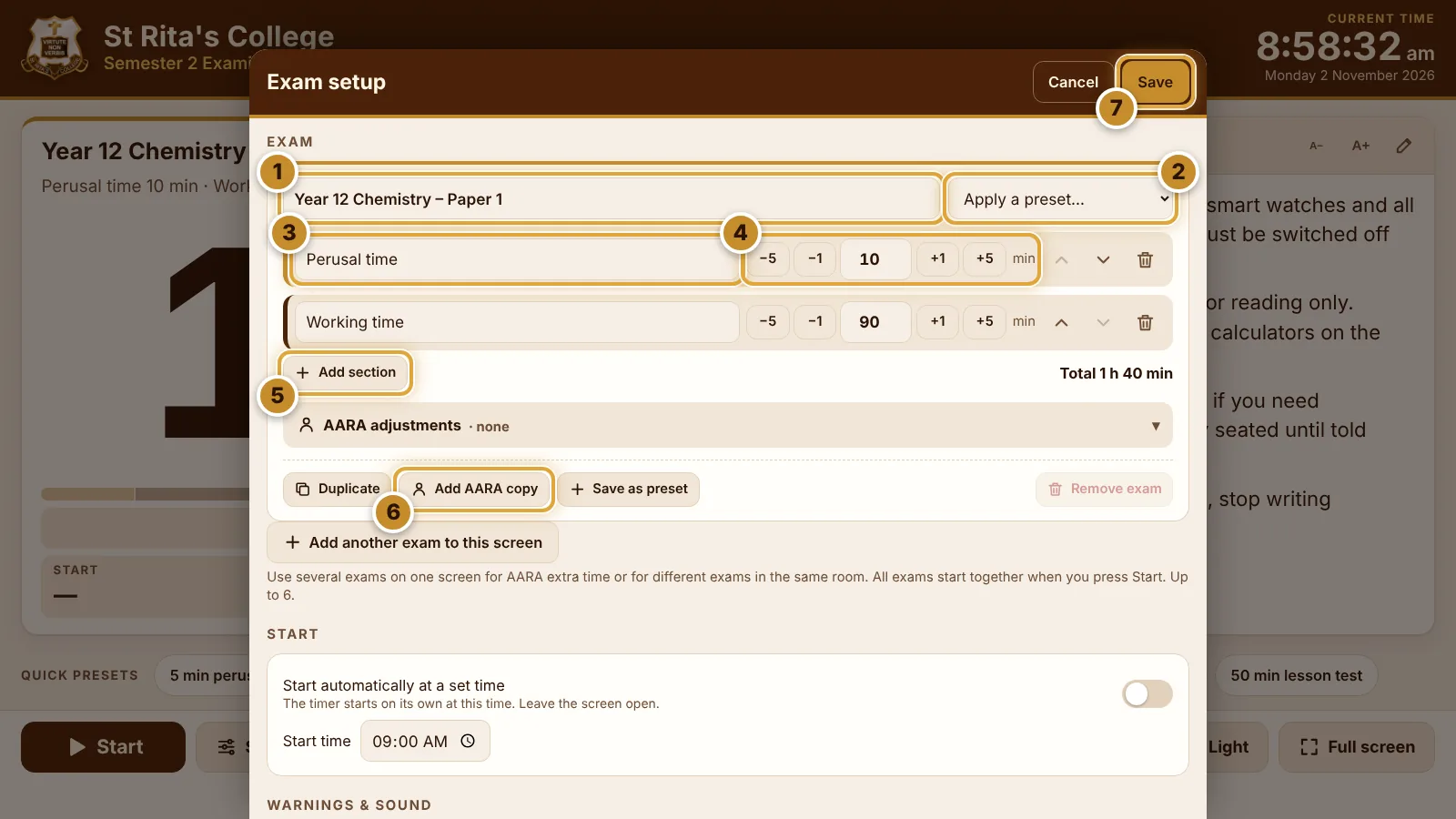
- 1Exam title (optional), e.g. Year 12 Chemistry – Paper 1.
- 2Apply a preset to fill in the sections in one step.
- 3Section name. Tap to rename, e.g. Part A or Practical.
- 4Minutes. Use −5 −1 +1 +5 or type a number.
- 5Add section. Remove one with the bin icon; reorder with the arrows.
- 6Add AARA copy adds a second timer for students with AARA. See Students with AARA.
- 7Save when you're done.
| Section | What students may do |
|---|---|
| Perusal time | Read the assessment only. No writing, no calculators. |
| Planning time | Make notes on planning paper only. |
| Working time | Respond to the assessment. |
Save as preset keeps your setup as a quick button on that panel. Start automatically at a set time (under Start) starts the exam on its own; leave the screen open.
Exam times are locked once an exam starts. Tap Reset first if you need to change them.
During the exam
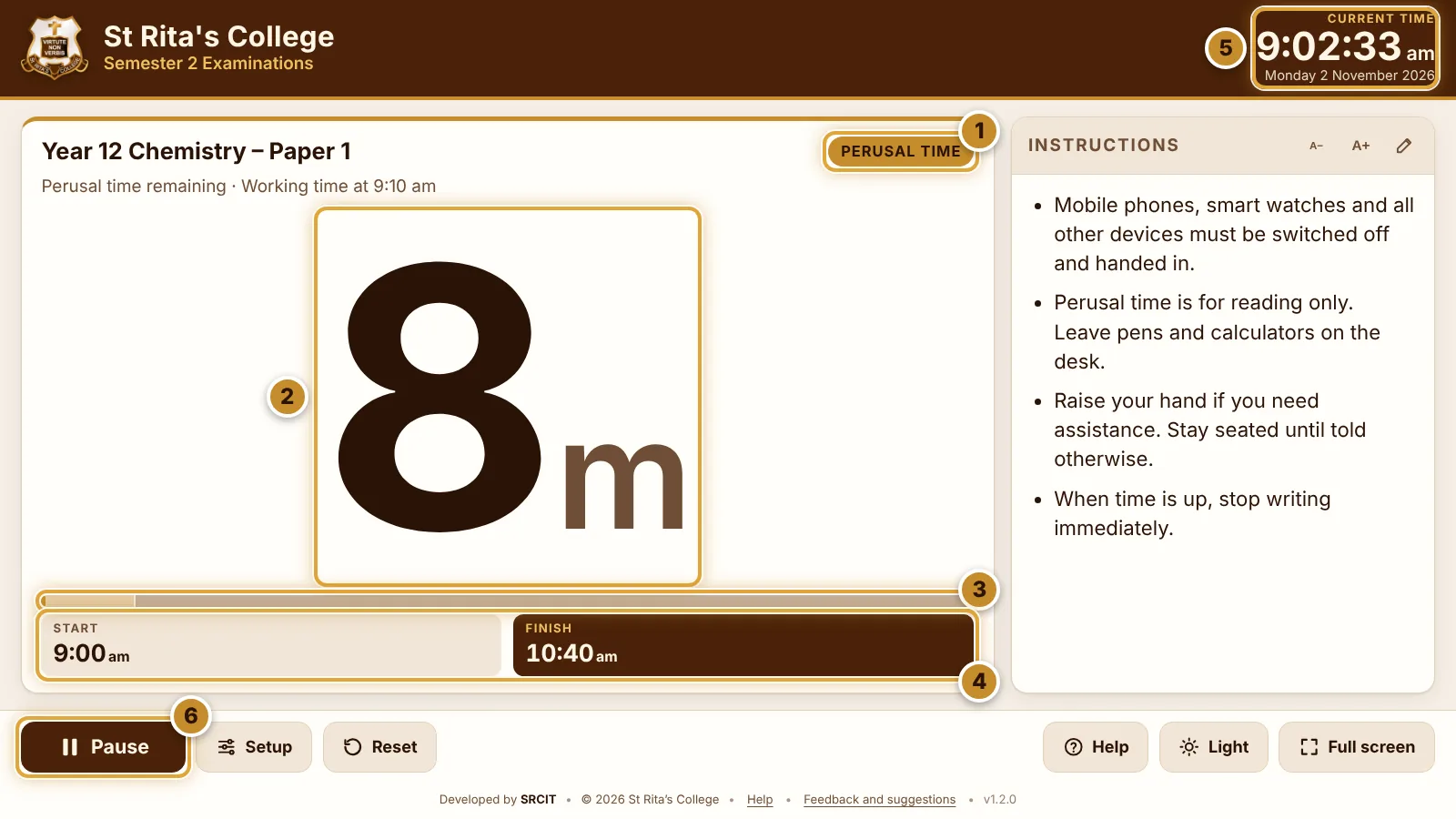
- 1Current section, e.g. Perusal time. Working time follows automatically.
- 2Time left in this section. Seconds show briefly after starting, while paused, and in the last minute.
- 3Progress through the whole exam.
- 4Start and finish times for the whole exam.
- 5Current time.
- 6Pause / Resume for whole-room interruptions, e.g. a fire drill. Every timer stops and finish times move later by the length of the pause.
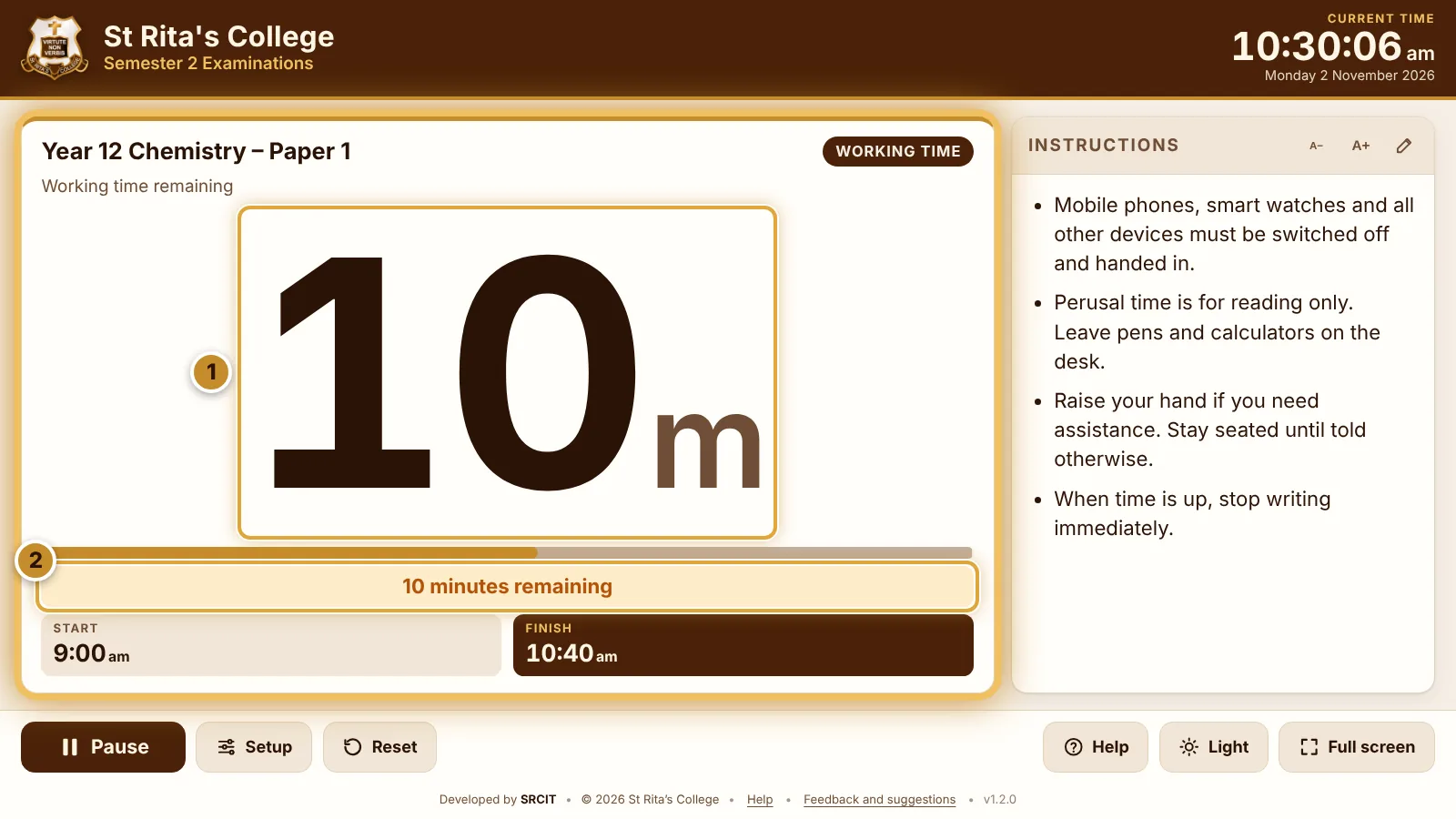
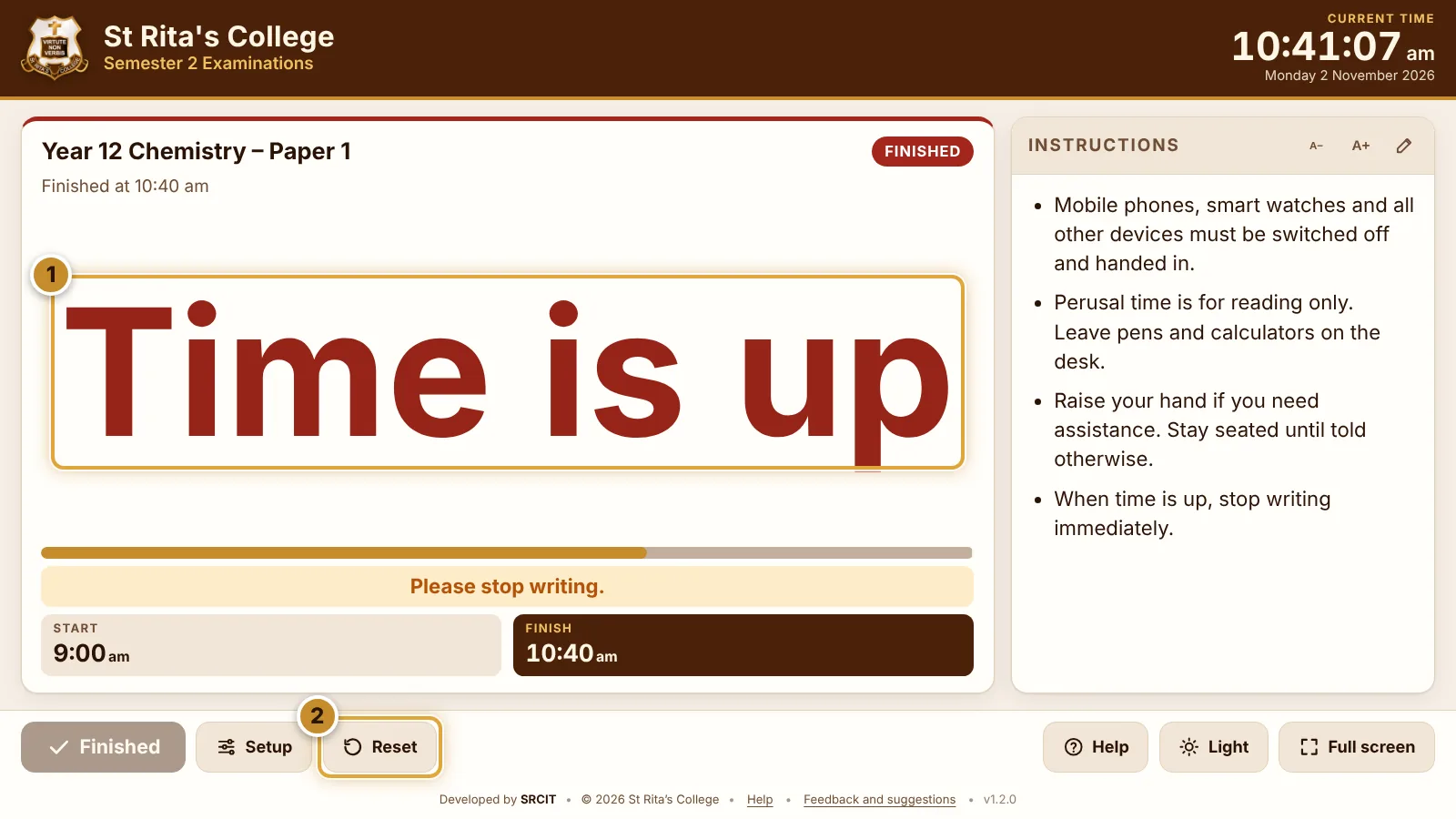
| When | What students see | Chimes |
|---|---|---|
| 30, 10 and 5 minutes left | The timer flashes and shows e.g. 10 minutes remaining. From the last warning the numbers turn amber. | 1 |
| Section changes | Perusal time has ended. Working time has begun. | 2 |
| Time is up | Time is up in red and Please stop writing. | 3 |
Students with AARA
Show a second timer on the same screen so students with access arrangements see their own finish time. All timers start together when you tap Start.
- In Setup, set up the standard exam first.
- Tap Add AARA copy. A copy appears with the QCAA standard rate filled in: 5 minutes per 30 minutes of working time, for extra time and for rest breaks.
- Open AARA adjustments on the copy and set each value to what the student is approved for (0 if not approved). Tap Save.
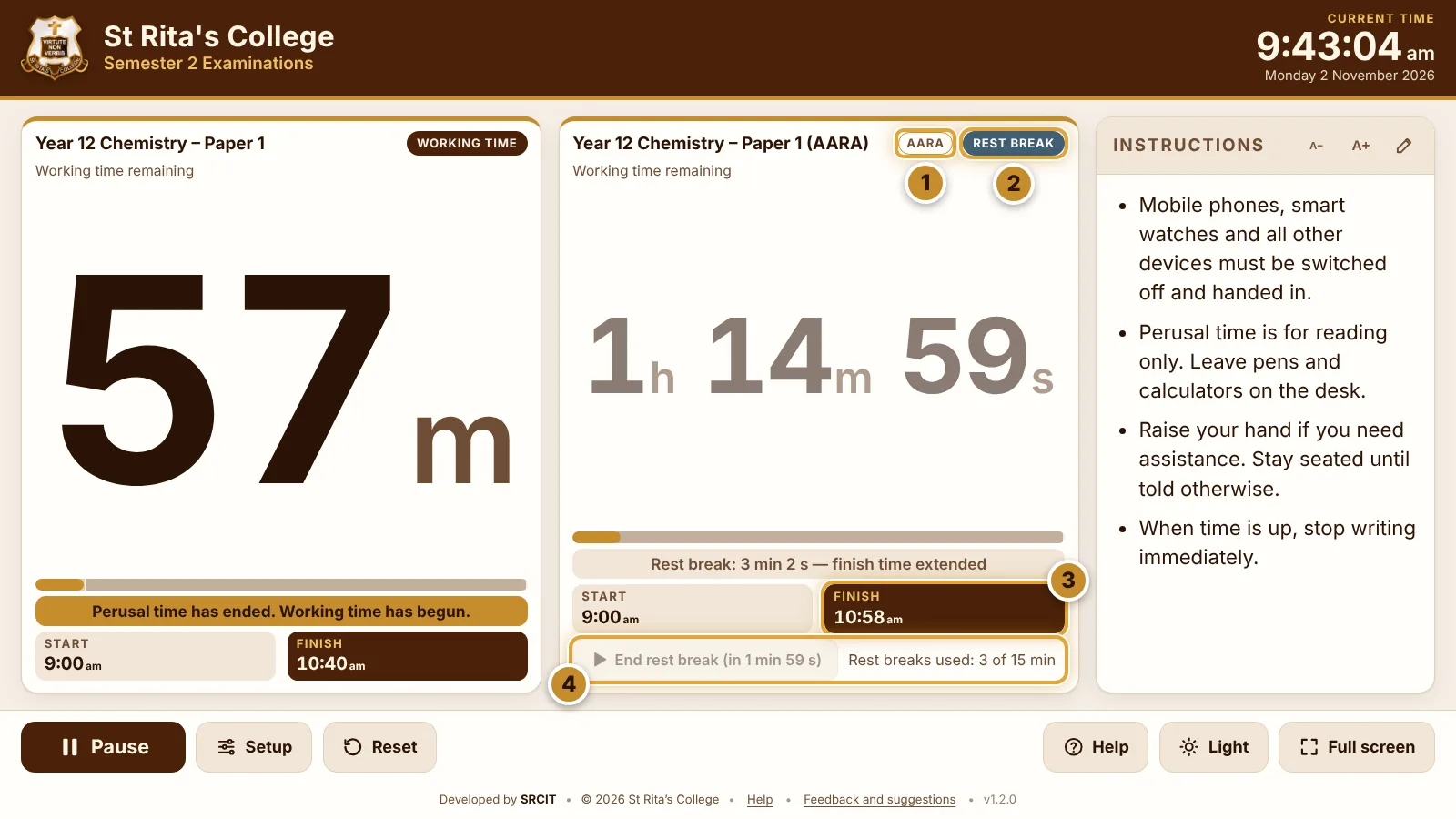
- 1AARA marks the timer that has adjustments.
- 2Rest break shows while a break is running. That timer pauses; the others keep going.
- 3Finish time moves later by the extra time and by every rest break.
- 4Start rest break / End rest break, and the allowance used. Each break must be at least 5 minutes, so End rest break unlocks after 5 minutes.
Extra time is added to working time only, never to perusal or planning time.
To run two different exams in one room, use Add another exam to this screen in Setup. Up to six timers fit on one screen.
Warnings and sound
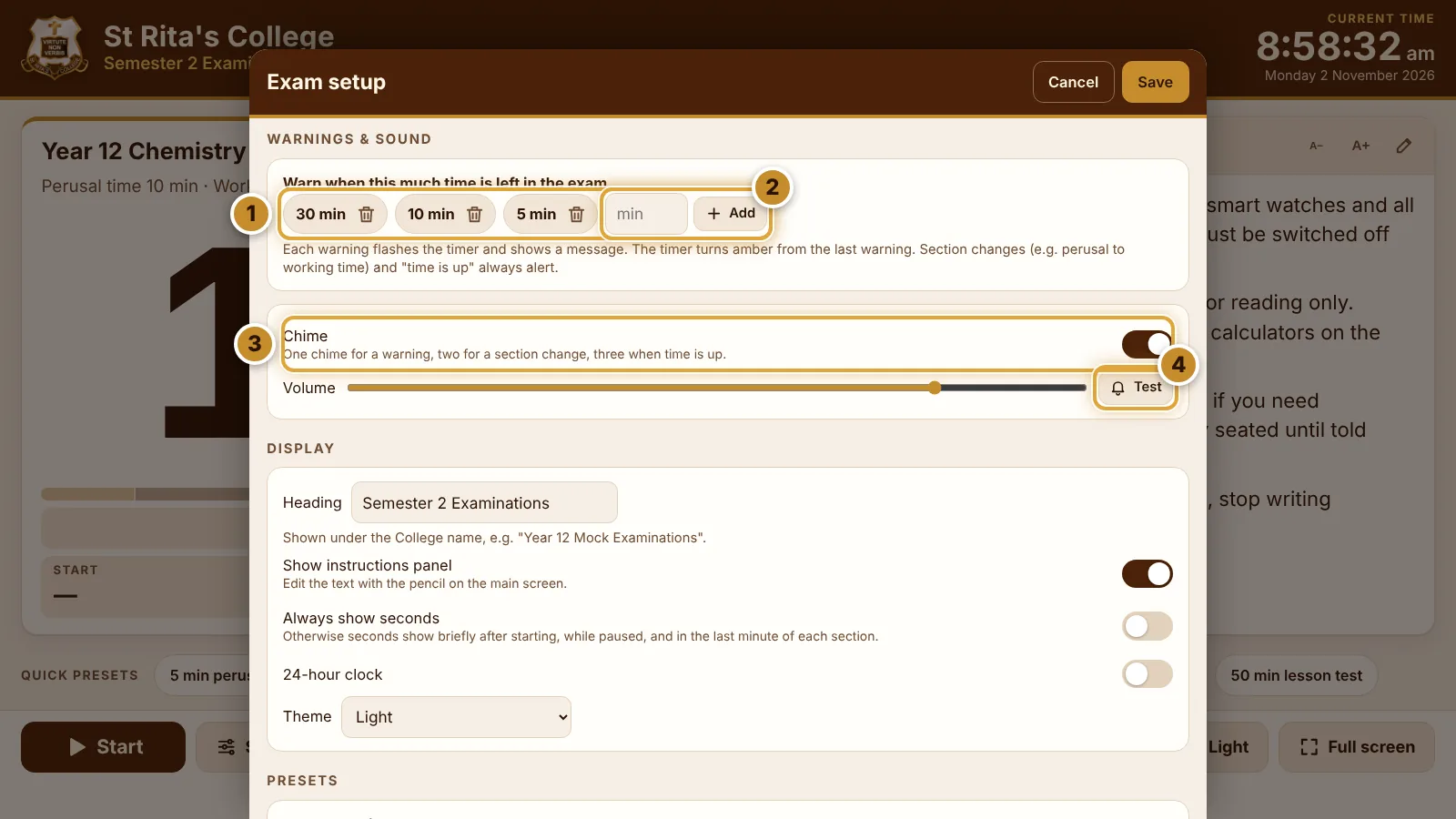
- 1Warning times. Tap the bin to remove one.
- 2Add a warning: type the minutes left, then Add.
- 3Chime on or off. Set the loudness with Volume.
- 4Test plays the chime so you can check the panel's volume.
Instructions and display
The Instructions panel shows exam rules to students. Tap the pencil to edit it, then Save. Start a line with - to make a bullet point. A− / A+ change the text size.
| Setup → Display | What it does |
|---|---|
| Heading | Text under the College name, e.g. Year 12 Mock Examinations. |
| Show instructions panel | Hides or shows the instructions. |
| Always show seconds | Shows seconds the whole time. |
| 24-hour clock | Shows 14:30 instead of 2:30 pm. |
| Theme | Light, Dark or Automatic. The Auto / Light / Dark button on the main screen switches it too. |
Troubleshooting
| Problem | What to do |
|---|---|
| No chime | Tap the orange Tap to enable sound button, or tap anywhere on the screen. Check the panel's volume and that Chime is on in Setup. |
| The page was refreshed or the browser closed | Open the timer again. A running exam carries on with the same finish time. |
| The Wi-Fi drops | Nothing to do. Once loaded, the timer keeps running without a connection. |
| The panel goes to sleep | Turn off the panel's auto sleep before long exams. |
| I can't change the exam times | Times are locked while an exam runs. Tap Reset, then Setup. |
| No Full screen button | Some browsers don't allow it. Use the home screen icon instead (see Opening the timer). |
The timer uses the panel's clock. As with any timer, keep a backup clock or watch in the room for formal exams.
Keyboard shortcuts
On a laptop or desktop:
| Space | Start, pause or resume |
| F | Full screen |
| S | Setup |
| H or ? | This help page |
| Esc | Close Setup or a dialog |
Help and feedback
Tell SRCIT what's working, what isn't, or what you'd like added: tap Feedback and suggestions at the bottom of the timer and scan the QR code, or open the feedback form. For urgent problems during an exam, contact SRCIT as usual.